
A cut-out or any photo, somewhere new
Add Background to Photo in One Step
Upload a transparent PNG you already cut out, or a photo that still has its old background, pick one of 12 scenes or describe a place, and AI adds the background with matching light. First AI edit free, then $0.50.
Pick a new scene
First AI edit free · then $0.50 an edit · no subscription
Upload an image to start. Scenes is already open; make a free cut-out first if you have none.
Example: Scene: Photo studio
Real result · drag to compare
A transparent PNG becomes a photo
Add background to photo: before and after
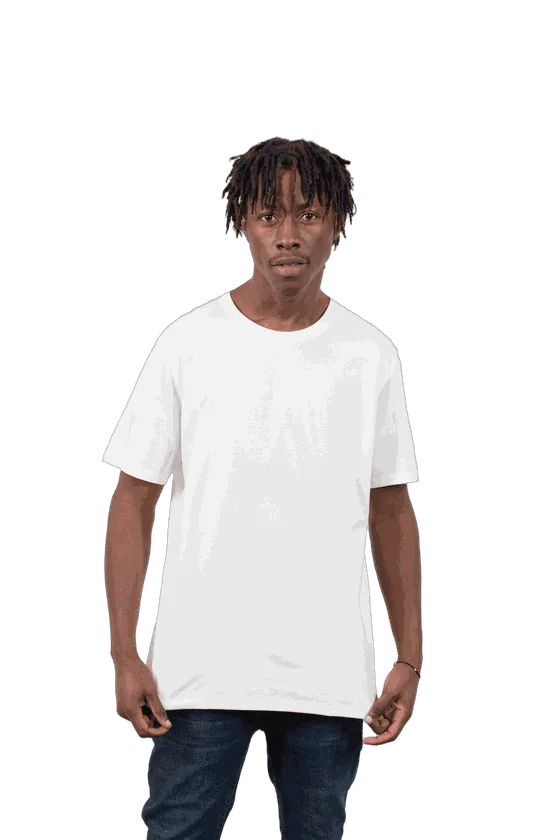
Drag across the picture to compare. The before is a transparent PNG of a man: nothing behind him but the checkerboard. The after is the same cut-out in a scene.
- BeforeAfter
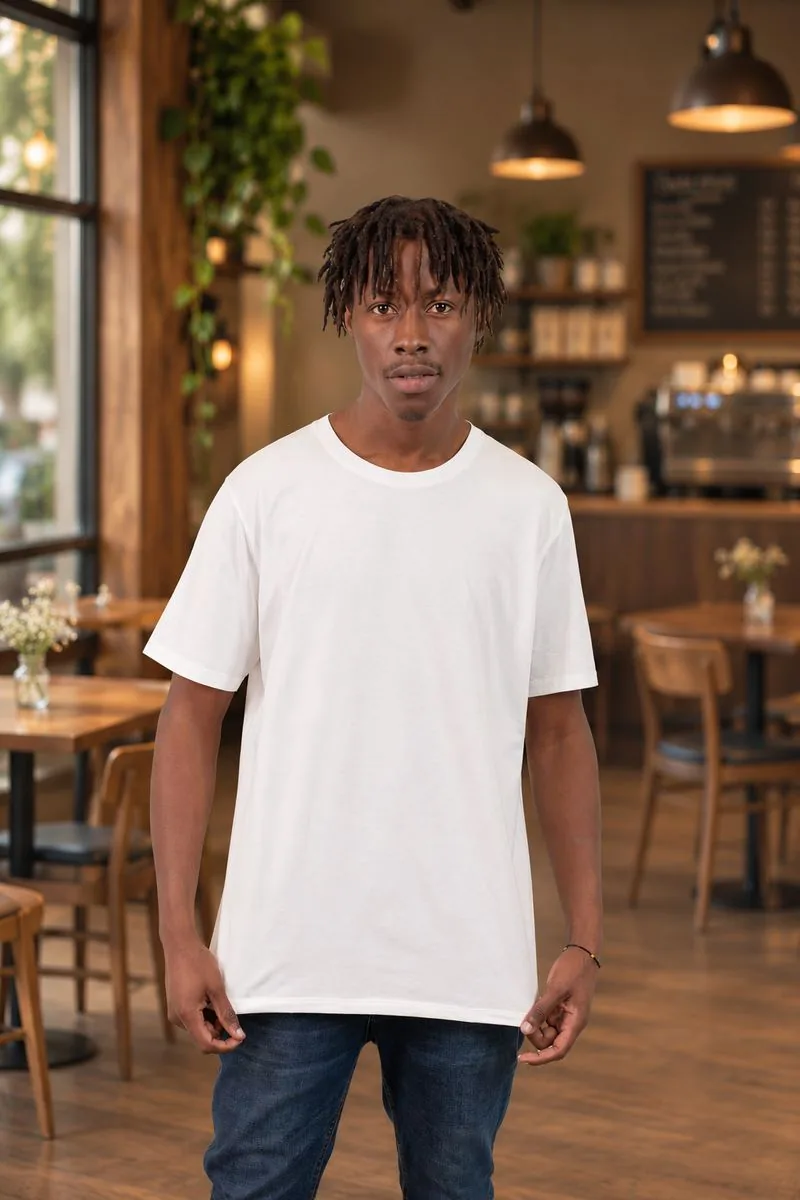
A cut-out placed in the Café scene
The transparent PNG was uploaded as it was, and the Café scene was picked: warm wooden tables, softly out of focus. The man's face, pose and clothes stayed the same, and the light on him now matches the room.
The photo is "Serious young black guy looking at camera against white background" by Monstera Production on Pexels (pexels.com/@gabby-k); it was cut out offline with BiRefNet lite, the model family the free Remove BG runs on devices with WebGPU. The result is a single, unretouched AI edit, scaled to the cut-out's size for the slider.
Usually under a minute
How to add background to photo in four steps
- 01
Upload the image
A JPG, PNG or WebP up to 10 MB: a transparent PNG you already cut out, or a photo that still has its old background. People, pets and products all work.
- 02
Pick a scene or describe a place
This page opens the studio in Scenes: tap one of 12 ready-made backgrounds. Or switch to Describe and write the place in up to 300 characters, such as "a cozy bookshop with warm lights".
- 03
Press Try free
Sign in when you press it, and your image and your choice wait for you. Your first AI edit is free; after that an edit is 125 credits, which is $0.50.
- 04
Compare and download
Drag across the result to compare it with your image, check the edges and the light, then download it. The result keeps the size of your photo, and every AI edit stays in My edits.
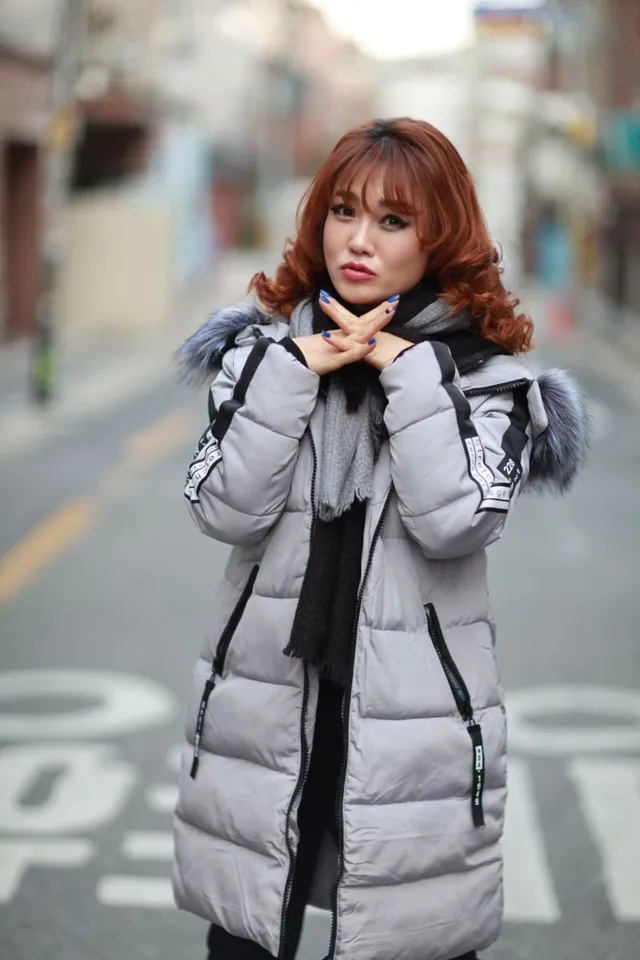
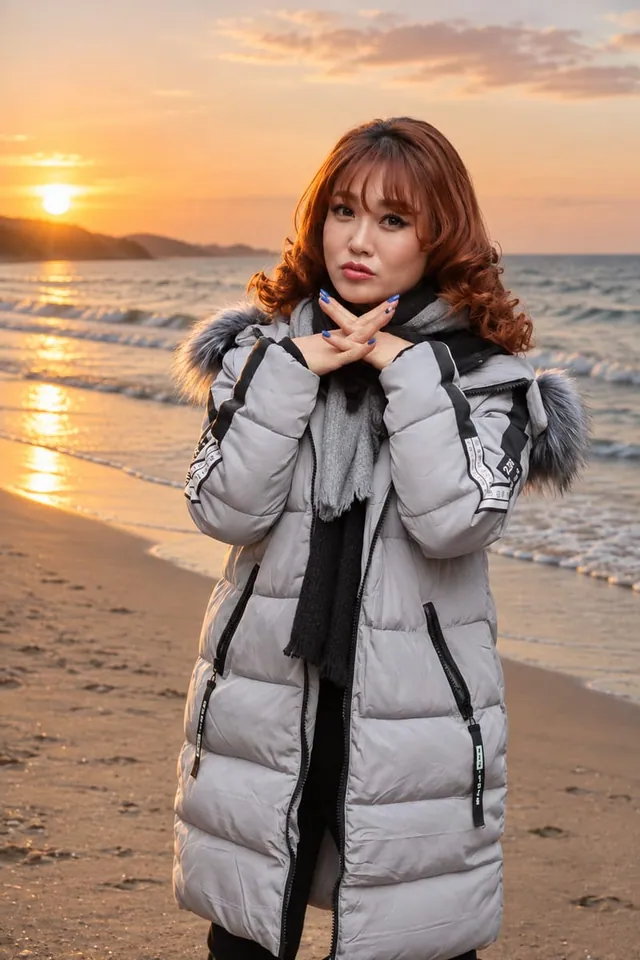
- Photo studio
- Marble tabletop
- Beach
- Modern office
- City street
- Forest
- Mountains
- Living room
- Café
- City at night
- Sunset sky
- Christmas
Starting from a transparent PNG
What happens when you add background to a cut-out
A cut-out is only half done: the person is there, the place is not. These are the things worth knowing before you give one a background.
- 01
Upload the PNG as it is
A transparent PNG up to 10 MB, with its alpha channel and its original size: no flattening, no pre-filling with white. The model fills the empty area around the subject with the new place.
- 02
Any scene, or one you describe
The 12 scenes run from Photo studio to Christmas, and Describe takes any place you can put in a sentence. The scene list with what each one looks like is on the AI background generator page.
- 03
The edges are blended, not pasted
The edit asks the model to match the new background's light, shadows and perspective to the subject, so the cut-out edge does not show and there is no halo. Compare with the slider before you use it.
- 04
No cut-out yet? Make one free
For a photo of a person, the free Remove BG in this studio cuts them out in your browser, then hands the PNG straight to the scenes. For a product or a pet, upload the photo as it is: the AI modes replace the old background.
The subject you have, a place you need
Why people add a background to a photo
A cut-out on nothing, or a good photo in the wrong place: both need somewhere to stand. These are the images people add a background to.
- 01
A transparent PNG that needs a place
A cut-out with a checkerboard behind it is only half done. Add a background to the PNG and it becomes a finished photo for a post, a slide or a profile.
- 02
Put a person in a different background
Move a portrait from a plain wall or a messy room to an office, a café, a beach or a city at night, with the light on the face matched to the new place.
- 03
A product photo in a styled setting
Set a product shot on a marble tabletop, in a photo studio or in a living room, so a listing shows it where it will be used.
- 04
A card, an invitation or a seasonal post
Put a family or a pet in front of a Christmas tree or a sunset sky for a card, an invitation or a post.
- 05
A thumbnail or a cover that stands out
Add a bold place behind a person for a video thumbnail, a cover image or a presentation slide.
- 06
Only need a plain color?
For a CV, a passport-style photo or a shop listing, a solid white or colored background is often the better choice.
For a result that looks real
Tips to add background to photo so it looks real
- 01
Cut out a person first, free
For a portrait, Transparent background maker gives you a PNG of the person in your browser, free and with no sign-in. Then press "Now put it in a new scene" to add a background with AI.
- 02
Pick a place that fits the camera angle
A photo taken from below suits a sky or mountains; one taken at eye level suits a room, an office or a street. A background that fits the angle looks taken there.
- 03
Name the light when you describe
"A beach at golden hour" or "a café with warm lights" tells the model which light to match on the subject. Adding "softly out of focus" hides small mismatches.
- 04
Check the face, hands and edges
AI image models can change a small detail. Compare with the slider, look closely at the face, hands and hair, and run the edit again if something is off.
One-time, no subscription
Add background to photo: first edit free, then $0.50
Every account gets one free AI edit. After that, each new background is 125 credits, which is $0.50, and a one-time $5 purchase adds 1,250 credits: ten edits.
- First AI edit free for every account, no card needed
- 125 credits ($0.50) for each AI edit after that
- $5 one-time for 1,250 credits: ten edits, no subscription
- Credits come back when an edit fails
- Transparent PNGs of people: free, in your browser, no sign-in
Add background to photo: questions and answers
How do I add background to photo?
Upload the image on this page, pick one of the 12 scenes or switch to Describe and write a place, then press Try free. AI adds the new background behind the person, pet or product and matches its light, shadows and perspective to the subject. There is no masking by hand and nothing to install.
Can I add background to a PNG or a transparent image?
Yes. Upload the transparent PNG like any other image, up to 10 MB, and choose a scene or describe a place. The edit asks the model to fill the empty area around the subject with the new background and to blend the edges into one photo.
Do I need to remove the old background first?
No. Scenes and Describe replace whatever is behind the subject, so a photo with its old background works as it is. If you want a clean cut-out of a person anyway, Transparent background maker makes one for free in your browser.
How do I put a person in a different background?
Upload the portrait, pick a scene such as Modern office, Café or Beach, or describe the place, and press Try free. The edit asks the model to keep the face, pose, hair and clothes exactly as they are, at the same size and in the same place in the frame.
Can I add background to photo for free?
Your first AI edit is free: sign in when you press Try free, no card needed. After that each AI edit costs 125 credits ($0.50), bought as a one-time $5 pack of ten edits, with no subscription. Cutting a person out to a transparent PNG is always free.
Is this the same as the AI background generator?
The same studio and the same AI, a different starting point. This page is for adding a background to a photo you already have, above all a transparent PNG cut-out. The AI background generator page walks through the 12 scenes and describing your own place; the scene list lives there.
Does it work for products and pets?
Yes. Scenes and Describe work on people, pets and products alike; the Marble tabletop and Photo studio scenes are made for product photos. The free transparent cut-out is made for people only, so for a product or a pet, upload the photo as it is.
When I add background to photo, does it keep the size?
Yes. The result keeps the size and framing of your photo, so you can drag across it and compare it with the original. AI image models can still shift a small detail, so check before you use it.
Which AI model adds the background?
gpt-image-2, the image model from OpenAI, through our AI gateway. Every edit asks it to keep the subject as it is and to blend the new background into one real-looking photo with clean edges and no halo.
Are my photos private?
Photos you upload for an AI edit and their results are stored at long, unguessable addresses and are not listed anywhere, and we do not use them to train AI models. Write to contact@photo-background-changer.com and we delete them within 30 days.
Same studio, other jobs
More ways to change the background of a photo
 Transparent background makerCut a person out of a photo to a transparent PNG, free and in your browser, then add a background here.
 AI background generatorGenerate a new place from a sentence: any setting you can describe, with matching light.
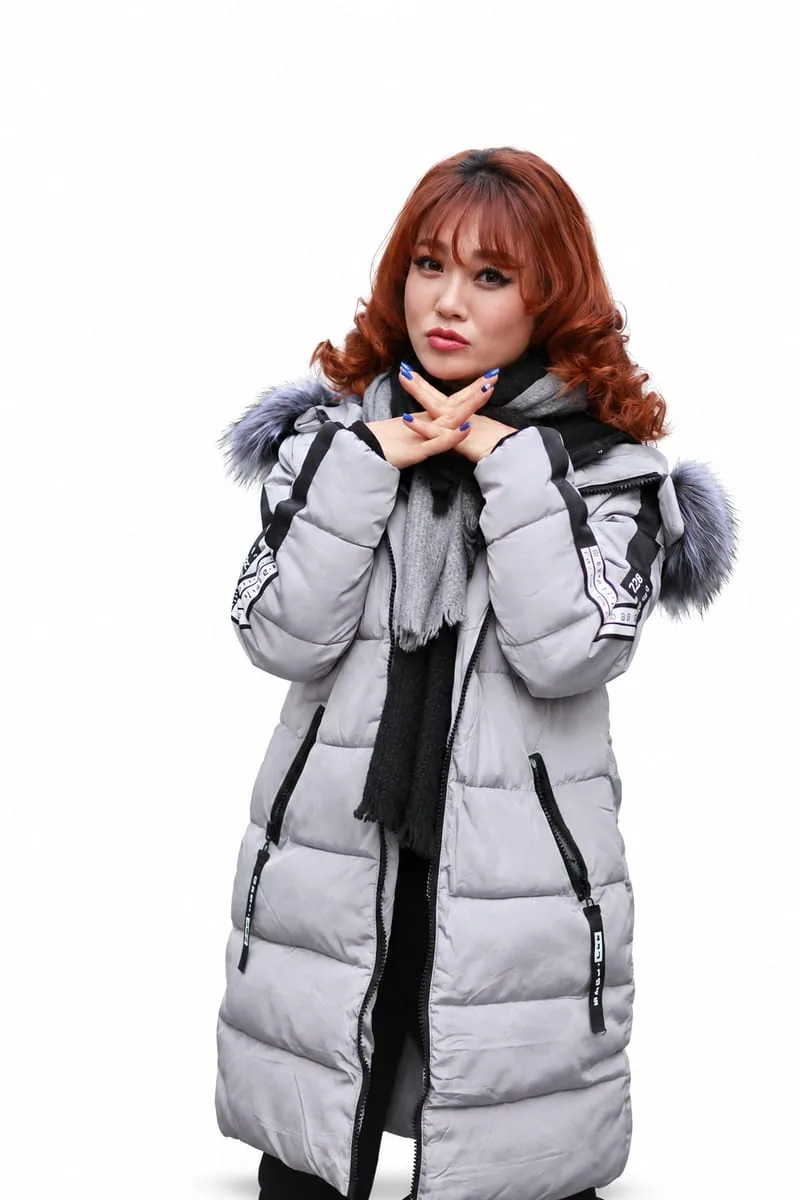 Make background whitePut a portrait or a product on pure white for a profile, a CV or a listing.
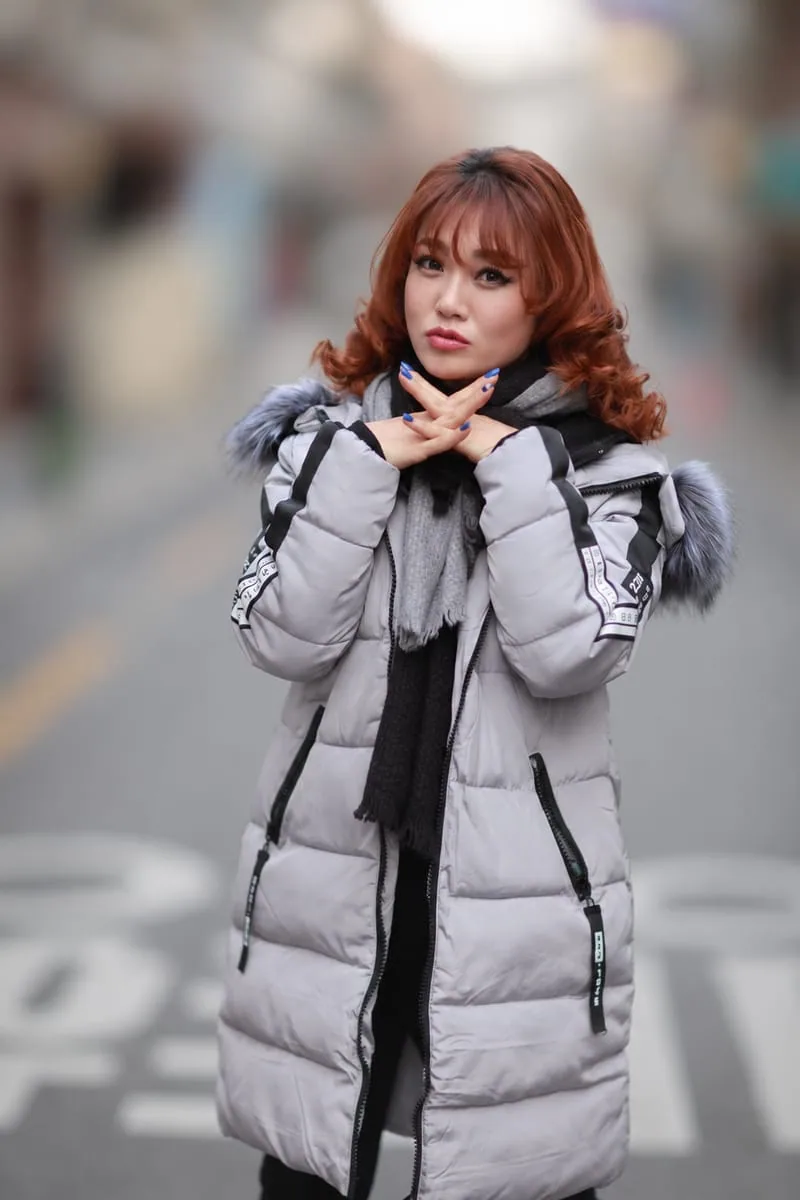 Edit photo backgroundKeep the background you have but blur it, brighten it or clear people out of it.