
For passport, visa and ID photos
Passport Photo White Background: White or Blue
Upload a portrait and AI replaces the room, wall or street behind you with plain white or passport blue. Many passport offices, including the US Department of State, reject photos changed by software, so check the official rules first. First AI edit free, then $0.50.
A clean, solid background
First AI edit free · then $0.50 an edit · no subscription
Upload a portrait to start, or try the sample photo. White is already chosen; Passport blue is one tap away.
Example: White background
Real result · drag to compare
One portrait, both colors
Passport photo white background: before and after
Drag across each picture to compare. The same front-facing portrait, once with White and once with Passport blue, both from Color mode.
- BeforeAfter
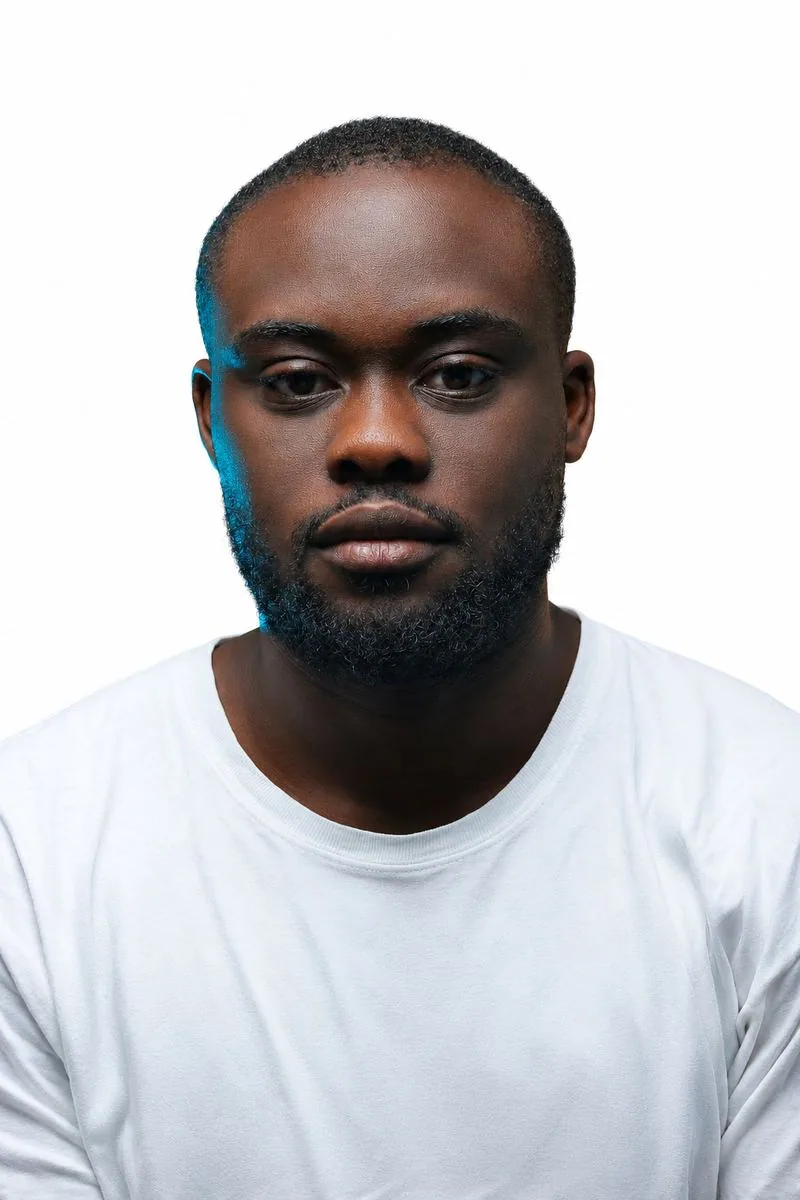
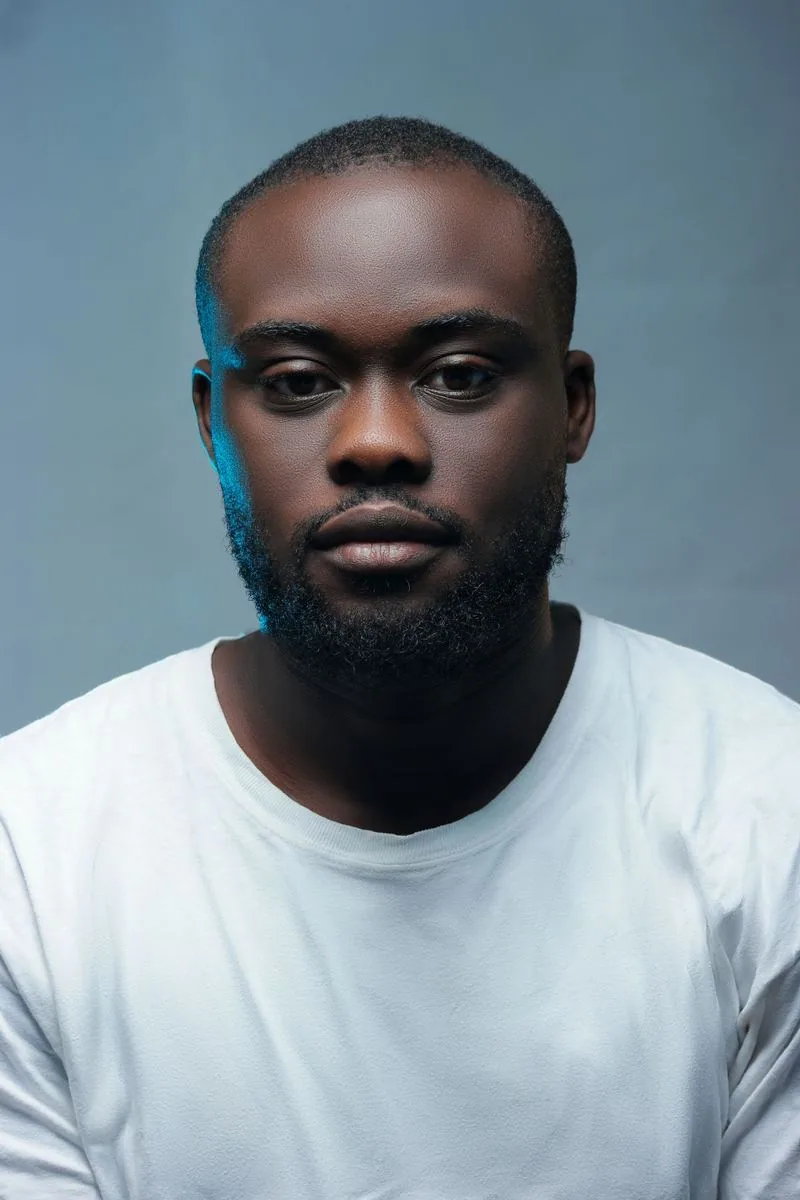
A front-facing portrait on plain white
Color mode with White: the gray wall behind the man is gone, replaced by an evenly lit plain white background, and his face, hair and shirt stay the same.
- BeforeAfter
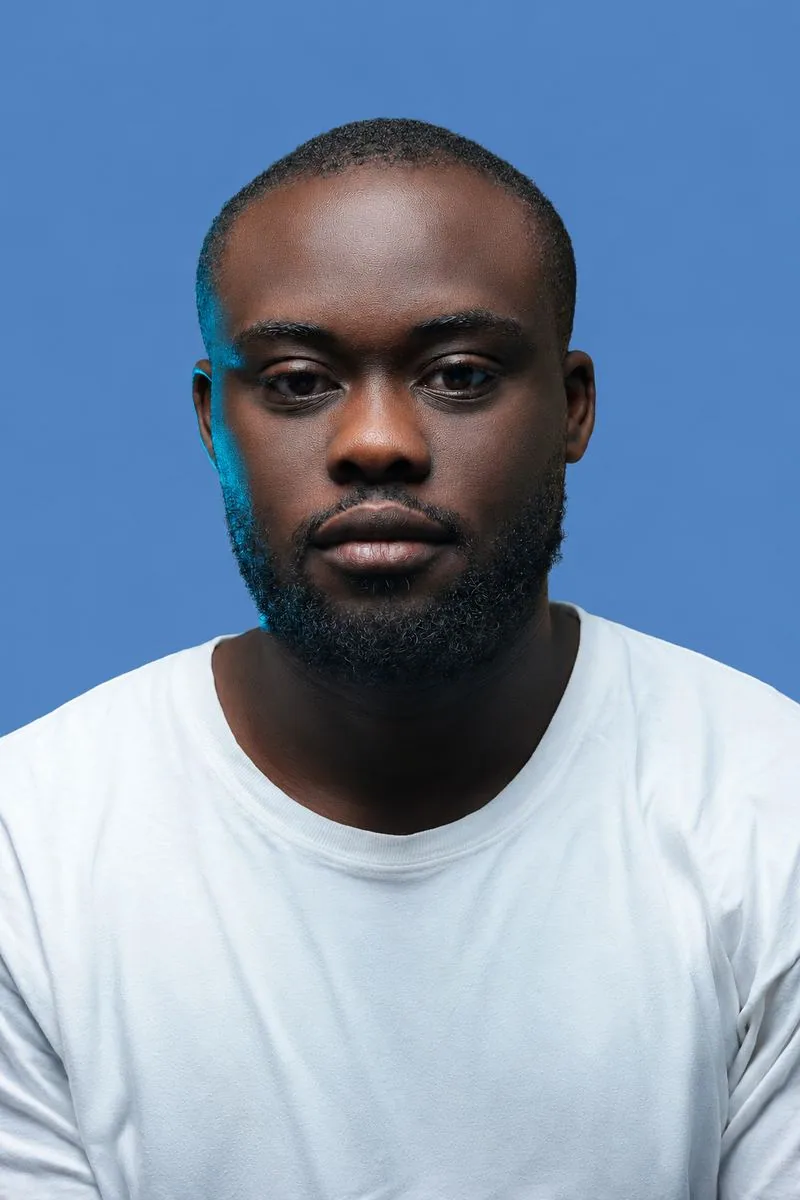
The same portrait on passport blue
Color mode with Passport blue (#4f86c6): the same edit with the color changed, one tap away. Some forms ask for a light blue background; pick the shade they name in Any color.
The portrait is "Portrait of Man" by Oluwakore Image on Pexels (pexels.com/@oluwakoreimage). Both results are single, unretouched AI results, scaled to the photo's size for the slider. The photo was not cropped or checked against any office's photo rules.
Usually under a minute
How to put a passport photo on a white background
- 01
Upload your portrait
A JPG, PNG or WebP up to 10 MB. A sharp, front-facing photo in good light, with your outline clearly apart from what is behind you, gives the cleanest hair and edges.
- 02
Choose White or Passport blue
This page opens the studio in Color mode with White already chosen. Tap Passport blue for a light blue background, or open Any color for the exact shade a form asks for.
- 03
Press Try free
Sign in when you press it, and your photo and choice wait for you. Your first AI edit is free; after that an edit is 125 credits, which is $0.50.
- 04
Compare, download and check
Drag across the result to compare it with your photo, look at the face, hair and shoulders, then download it. Before you submit it, check the photo against the rules of the office you send it to.
A plain background without a photo booth
When a passport photo needs a white background
A wall at home is rarely plain enough. These are the photos people put on white or blue here, and what the tool does and does not do for each.
- 01
Passport photo background change
Took the photo against a door, a bookshelf or a patterned wall? Replace what is behind you with plain white or passport blue and keep your face, hair and clothes as they are.
- 02
Visa photo backgrounds
Visa forms often ask for a plain light background, and some ask for a particular color. Pick White, Passport blue or Any color, then read the photo rules on the visa form.
- 03
ID photo background for cards and badges
An ID photo background for a student card, a work badge or a membership card: put the portrait on one clean color so it matches the other photos on the card.
- 04
Change passport photo background to white
White is the color many offices ask for. It is the preset this page opens with, and the edit asks for pure white (#ffffff), evenly lit, with no texture or gradient.
- 05
Forms that want another color
Some applications ask for blue, light gray or red. Passport blue, Light gray and Red are presets, and the background color changer explains every option.
- 06
What it does not do
The tool only changes the background. It does not crop the photo to an official size, set the head size, print a sheet or check the photo against any rules. The result keeps your photo's size and framing.
Common photo rules, as a starting point
Common ID photo background requirements
A quick look at what offices commonly ask for. Rules change and every office decides for itself, so treat this as a starting point and check the issuing office's current photo requirements before you take or submit a photo.
- 01
United States passport
2 × 2 inches (5 × 5 cm), with a plain white or off-white background and the head between 1 and 1-3/8 inches from chin to crown. The photo must be taken within the last 6 months.
- 02
United Kingdom and Ireland
45 × 35 mm, with a plain light grey or cream background. Plain white is accepted by some offices but not all, so check the form first.
- 03
Schengen and many other visas
45 × 35 mm, with a plain white or light background; the exact color differs by country and form. Face straight to the camera, mouth closed, no glare on glasses.
- 04
What this tool covers, and what it does not
It puts the portrait on the plain color the form asks for. It does not crop to an official size, set the head size, resize, print or check the photo against any rules: only the office that receives it decides, and we make no promise of acceptance.
Before you upload
Tips for the passport photo white background
- 01
Start from a sharp, front-facing photo
The tool keeps your face, pose and framing exactly as they are, so the photo you upload should already face the camera, be in focus and be evenly lit. Changing the background will not fix a blurry or tilted photo.
- 02
Stand apart from the wall
A portrait where your hair and shoulders are clearly apart from what is behind you gives the cleanest edges. Hair that blends into a dark background is harder.
- 03
White shirt on white? Try light blue
A white shirt on a white background can lose its outline. If the rules allow it, Passport blue or Light gray keeps the edge of your shoulders visible.
- 04
Check the face and the rules
AI image models can change a small detail, so compare with the slider and run the edit again if something is off. Then check size, crop, head position and background color against the office's own rules before you submit the photo. The US Department of State, for example, does not accept digitally altered photos; its photo requirements are linked here.
One-time, no subscription
Passport photo white background: first edit free
Every account gets one free AI edit. After that, each AI edit is 125 credits, which is $0.50, and a one-time $5 purchase adds 1,250 credits: ten edits.
- First AI edit free for every account, no card needed
- 125 credits ($0.50) for each AI edit after that
- $5 one-time for 1,250 credits: ten edits, no subscription
- Credits come back when an edit fails
- Transparent PNGs of people: free, in your browser, no sign-in
Passport photo white background: questions and answers
How do I put a passport photo on a white background?
Upload your portrait on this page, keep White selected or tap Passport blue in Color mode, and press Try free. AI replaces everything behind you with a plain, evenly lit background and keeps your face, hair, clothes and pose as they are. There is nothing to select by hand and nothing to install.
Will a passport office accept a photo edited here?
Often it will not. Many issuing authorities, such as the US Department of State and HM Passport Office in the UK, do not accept photos that were changed by software, and this tool uses an AI image model that redraws the whole photo and can change small details. Check the official rules before you submit (for US passports: https://travel.state.gov/en/passports/apply/help/photos.html); for an official application, a photo taken against a plain background is the safer choice.
Can I change my passport photo background to white?
Yes. White is already chosen when this page opens. The edit asks for pure white (#ffffff), evenly lit, with no texture, gradient, objects or vignette. For white backgrounds in general, see the make background white page.
Can I change an ID photo background to blue?
Yes. Passport blue is one of the Color mode presets and gives a light blue background. If a form names an exact shade, open Any color and pick it.
Does it crop my photo to passport size?
No. The tool only changes the background. The result keeps your photo's size and framing; it does not crop to an official size, set the head size or make a print sheet. Crop and size the photo to the rules of the office you send it to.
Will the passport photo white background change my face?
It should not. Every edit asks the model to keep you exactly as you are: the same face, pose, hair, clothes and edges, in the same place in the frame. AI image models can still change a small detail, so compare with the slider before you use the photo.
Same studio, other backgrounds
More ways to change a photo's background
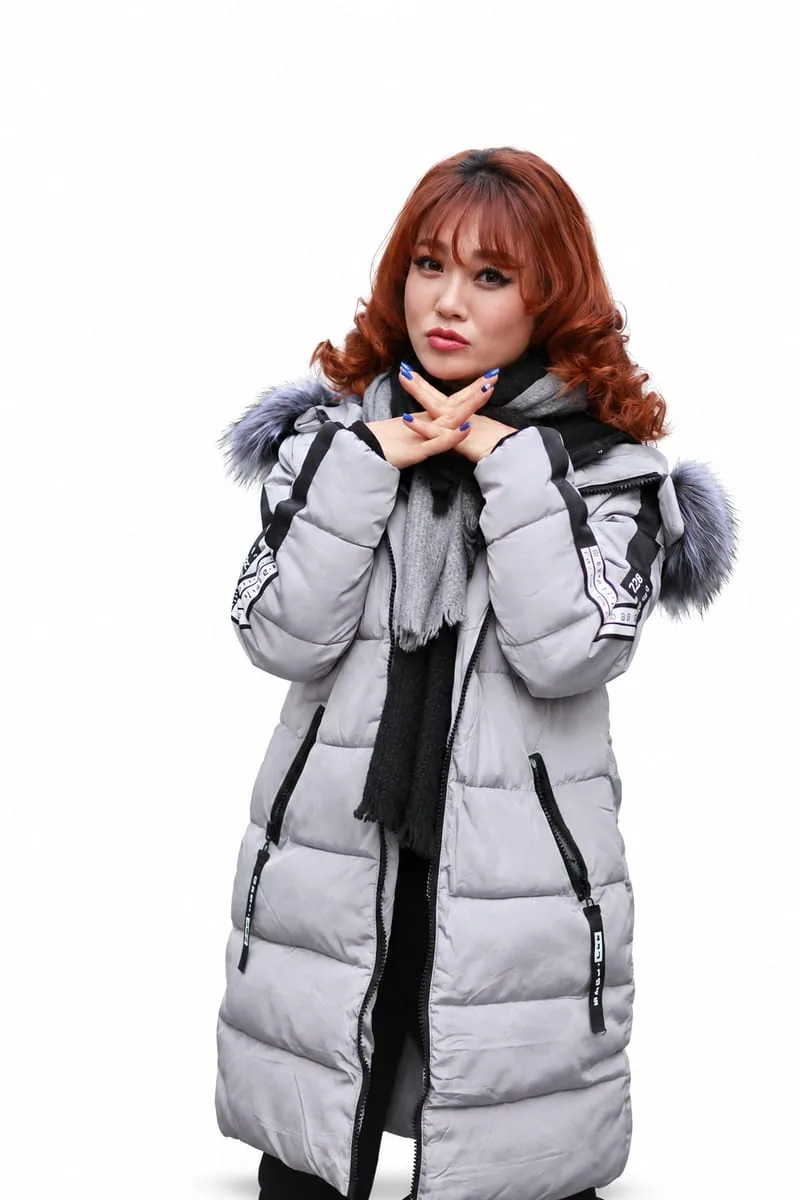 Make background whitePut a person or a product on pure, evenly lit white for a profile, a CV or a listing.
 Background color changerWhite, light gray, black, passport blue, red, cream or any color you pick behind the subject.
- Transparent background makerCut a person out of a photo to a transparent PNG, free and in your browser.