
Same place, better photo
Edit Photo Background with AI: Blur, Brighten, Declutter
Say in a sentence how to edit the background of your photo, such as blur it, brighten it or clear the clutter, and AI changes only the background. First AI edit free, then $0.50.
Edit the background you have
First AI edit free · then $0.50 an edit · no subscription
Upload a photo to start, or try the sample portrait.
Example: "Blur the background like a portrait lens"
Real result · drag to compare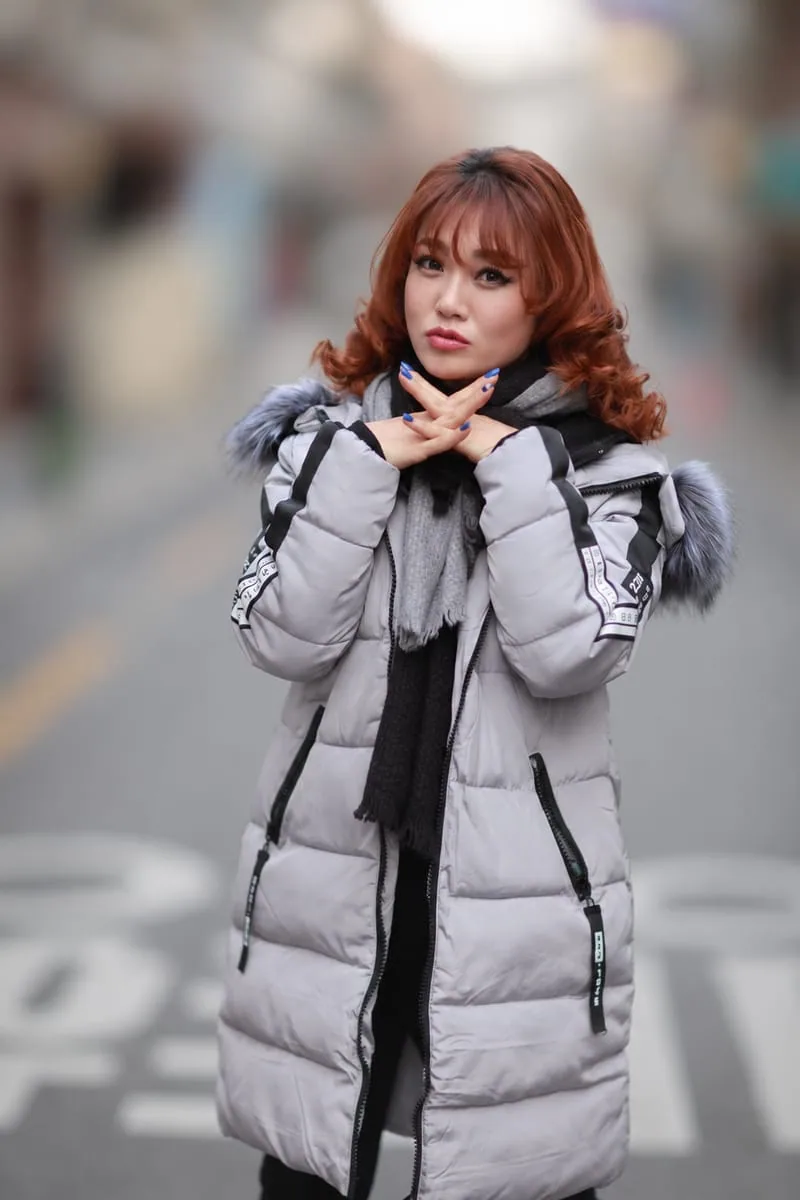
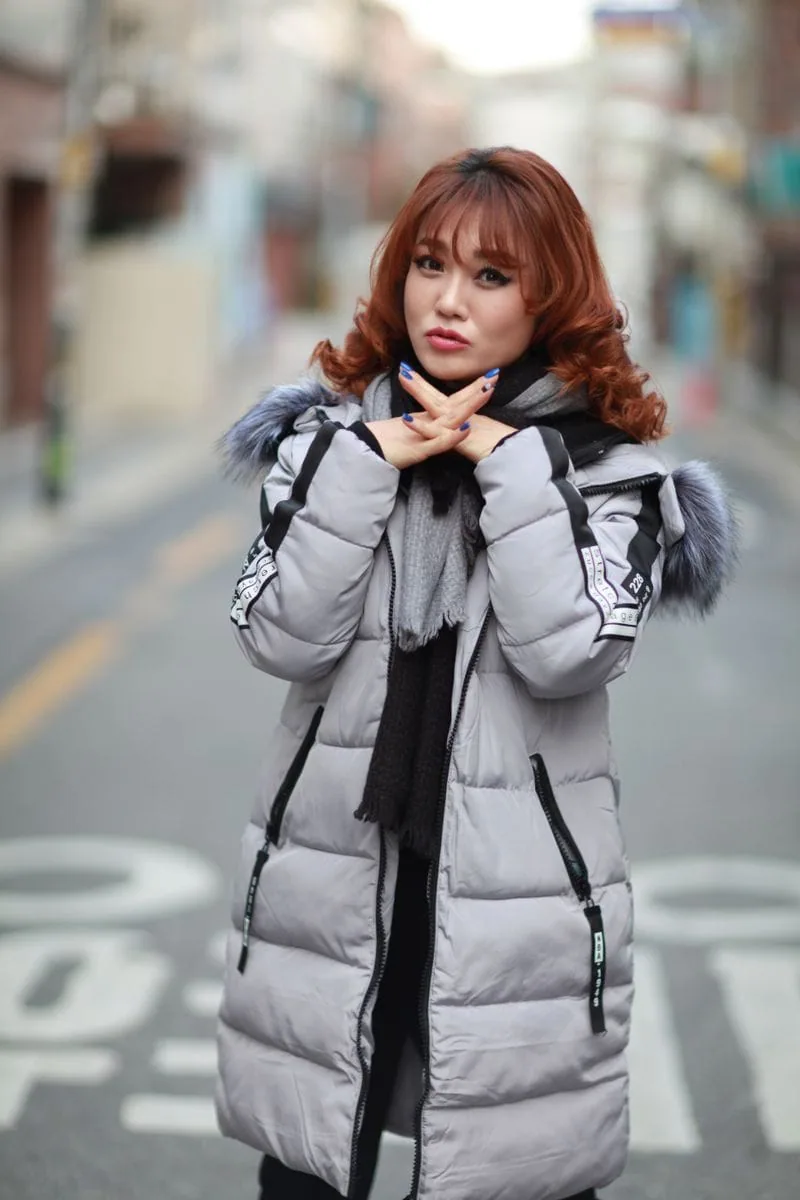
One sentence, one edit
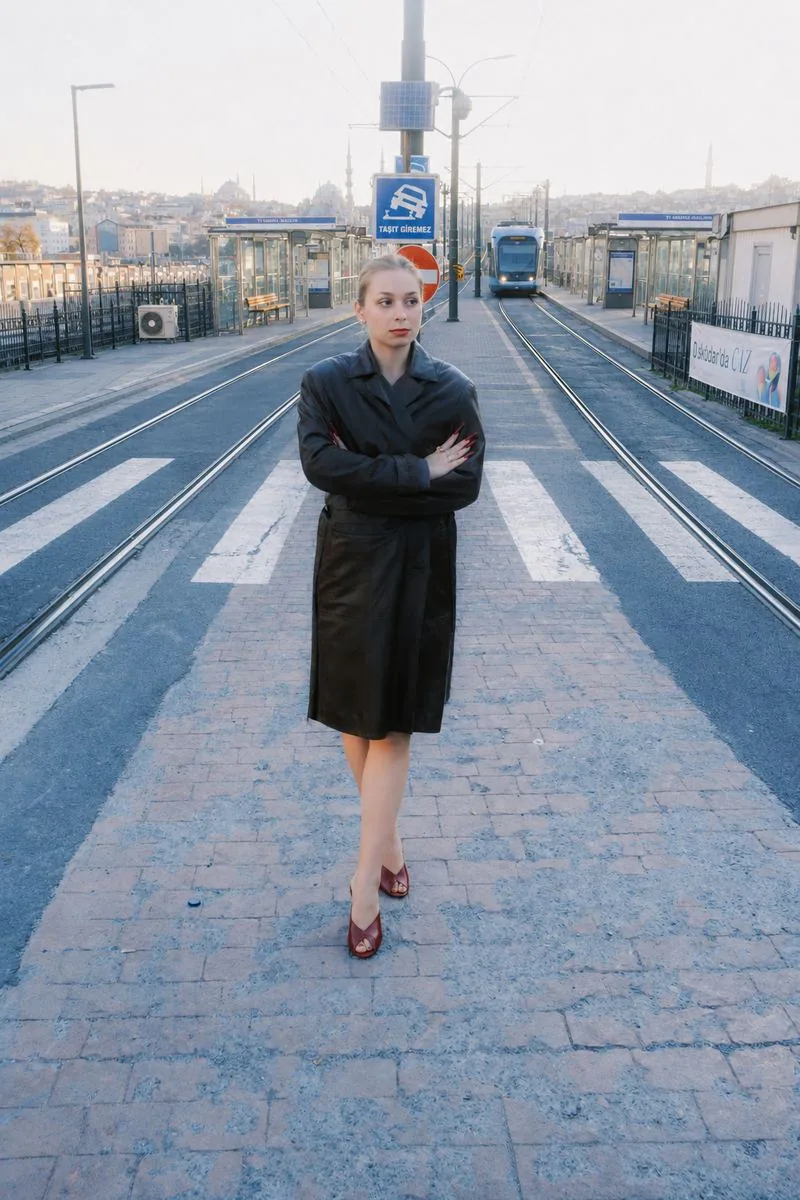
Edit photo background example: before and after
Drag across the picture to compare. The street stays a street; only how it looks behind the woman has changed.
- BeforeAfter
A busy street, blurred like a portrait lens
Typed "Blur the background like a portrait lens" in Edit mode: the street behind her went soft, and the woman, her coat and her pose stayed sharp and the same.
The portrait is a stock photo from Pexels. The result is a single, unretouched AI edit, scaled to the photo's size for the slider.
Keep the place, fix how it looks
What you can do when you edit a photo background
Edit mode works on the background the photo already has. You describe the change in your own words, up to 300 characters, and the person, pet or product in front stays as it is.
- 01
Blur the background
Soften what is behind the subject like a portrait lens, so a busy street, a cluttered room or a crowd no longer pulls the eye away.
- 02
Brighten and clean it up
Make a dim or gray background brighter and cleaner, so a photo taken indoors or on a cloudy day looks lighter without changing the subject.
- 03
Declutter the background
Take out a stray bag, a sign, cables or a mess on the table behind the subject, and fill the space with the background around it. Name what to remove and where, so nothing else goes with it.
- 04
Change one thing in it
Turn a white, overcast sky into a clear blue sky, while the rest of the place and the subject stay as they are.
Usually under a minute
How to edit a photo background in four steps
- 01
Upload the photo
A JPG, PNG or WebP up to 10 MB: a portrait, a selfie, a pet or a product, taken anywhere.
- 02
Say how to edit the background
Write the change in a sentence, or tap one of the ideas: blur it like a portrait lens, make it brighter and cleaner, or turn the sky clear blue.
- 03
Press Try free
Sign in when you press it, and your photo and sentence wait for you. Your first AI edit is free; after that an edit is 125 credits, which is $0.50.
- 04
Compare and download
Drag across the result to compare it with your photo, then download it. Every AI edit stays in My edits, so you can come back to it.
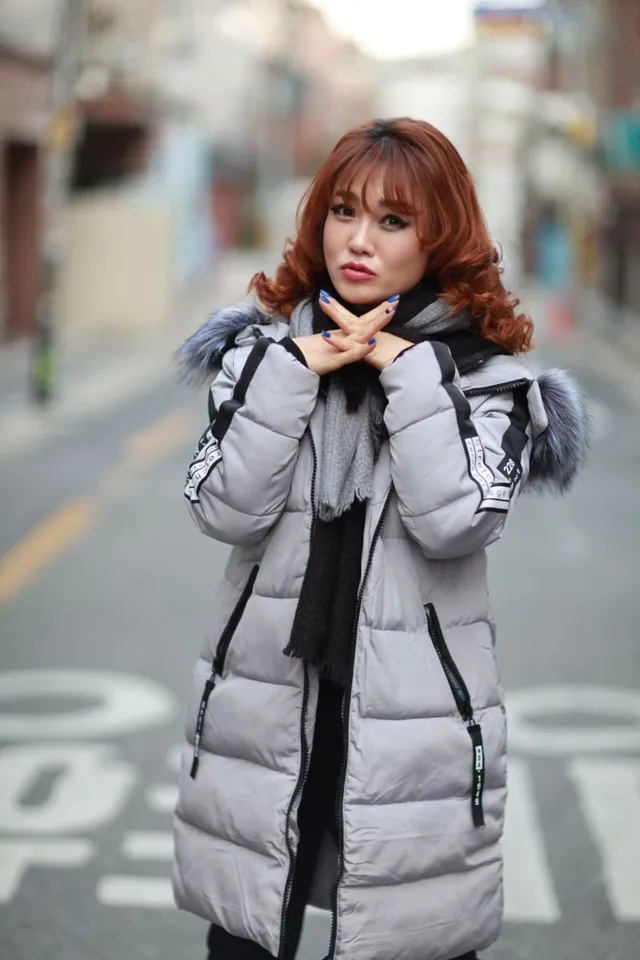
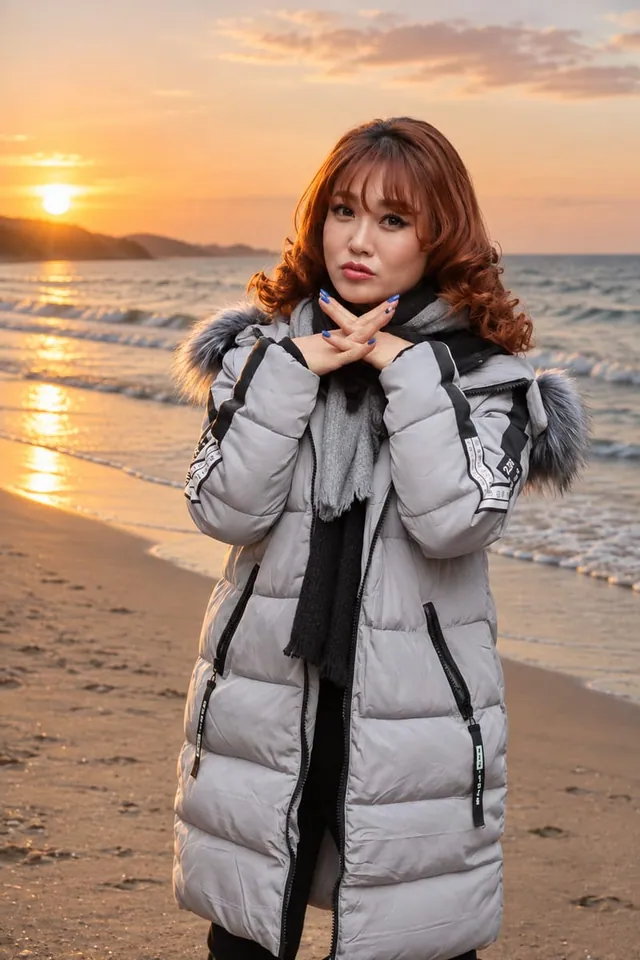
A good photo, a distracting background
When to edit a photo background instead of replacing it
Sometimes the place is right and only the way it looks is wrong. Editing keeps where the photo was taken, so it still feels like your photo.
- 01
Travel and holiday photos
Keep the landmark or the beach, but blur the crowd behind you or brighten a gray sky, so the place and you stand out.
- 02
Profile photos taken at home
Blur or brighten the room behind you for a dating profile, a team page or a social account, without moving to a studio.
- 03
Product and pet photos
Clear the clutter off the table behind a product, or soften the yard behind a pet, so the subject stands out.
- 04
Event and family photos
Brighten a dim party room or clear the clutter behind a group photo before you print or share it.
Get it right the first time
Tips to edit a photo background that still looks real
- 01
Ask for one change at a time
"Blur the background" or "brighten the background" works better than a long list. Make a second edit for the next change.
- 02
Want a different place? Replace it
When the background itself should be somewhere else, a beach, a studio or plain white, use the photo background changer instead.
- 03
Check the face and the edges
AI image models can change a small detail. Compare with the slider, look at the face, hands and hair, and run the edit again if something is off.
One-time, no subscription
Edit photo background price: first edit free, then $0.50
Every account gets one free AI edit. After that, each AI edit is 125 credits, which is $0.50, and a one-time $5 purchase adds 1,250 credits: ten edits.
- First AI edit free for every account, no card needed
- 125 credits ($0.50) for each AI edit after that
- $5 one-time for 1,250 credits: ten edits, no subscription
- Credits come back when an edit fails
- Transparent PNGs of people: free, in your browser, no sign-in
Edit photo background: questions and answers
How do I edit the background of a photo?
Upload the photo, choose Edit and write how the background should change, such as "Blur the background like a portrait lens" or "Make the background brighter and cleaner". Press Try free and AI edits only the background, keeping the person, pet or product as it is. There is no selecting or masking by hand.
Is it free to edit a photo background here?
Your first AI edit is free: sign in when you press Try free, no card needed. After that each AI edit costs 125 credits ($0.50), bought as a one-time $5 pack of ten edits, with no subscription.
Can I blur the background of a photo?
Yes. Ask for it in a sentence, for example "Blur the background like a portrait lens", and the background goes soft while the subject stays sharp. You can ask for a light or a strong blur in your own words.
Can I declutter or brighten a photo background?
Yes. Write what to take out, such as "remove the bag on the bench" or "remove the cables on the wall", and the space is filled with the background around it; or ask to "make the background brighter and cleaner". To take strangers or tourists out of a shot, see the remove people from background page.
What is the difference between editing and changing a photo background?
Editing keeps the place the photo was taken and changes how it looks: blurrier, brighter, emptier. Changing replaces it with somewhere else, a scene you describe, a preset or a solid color, which the photo background changer on the home page does.
Will editing the background change my face or the subject?
Every edit asks the model to keep the subject exactly as it is (face, pose, hair, clothes, shape and colors) and to leave everything that is not background untouched. AI image models can still change a small detail, so compare with the slider and run the edit again if needed.
What photos can I use?
Any JPG, PNG or WebP up to 10 MB: people, pets and products all work in Edit mode. Upload only photos you have the right to use.
How long does it take to edit a photo background?
An AI edit usually takes under a minute. You do not have to keep the page open: the result appears when it is ready and is saved in My edits.
Which AI edits the photo background?
gpt-image-2, the image model from OpenAI, through our AI gateway. If an edit fails, its credits come back to your balance, and a failed free edit can be tried again.
Are my photos private?
Photos you upload and their results are stored at long, unguessable addresses and are not listed anywhere, and we do not use them to train AI models. Write to contact@photo-background-changer.com and we delete them within 30 days.
Same studio, other jobs
Replace the background, or take people out
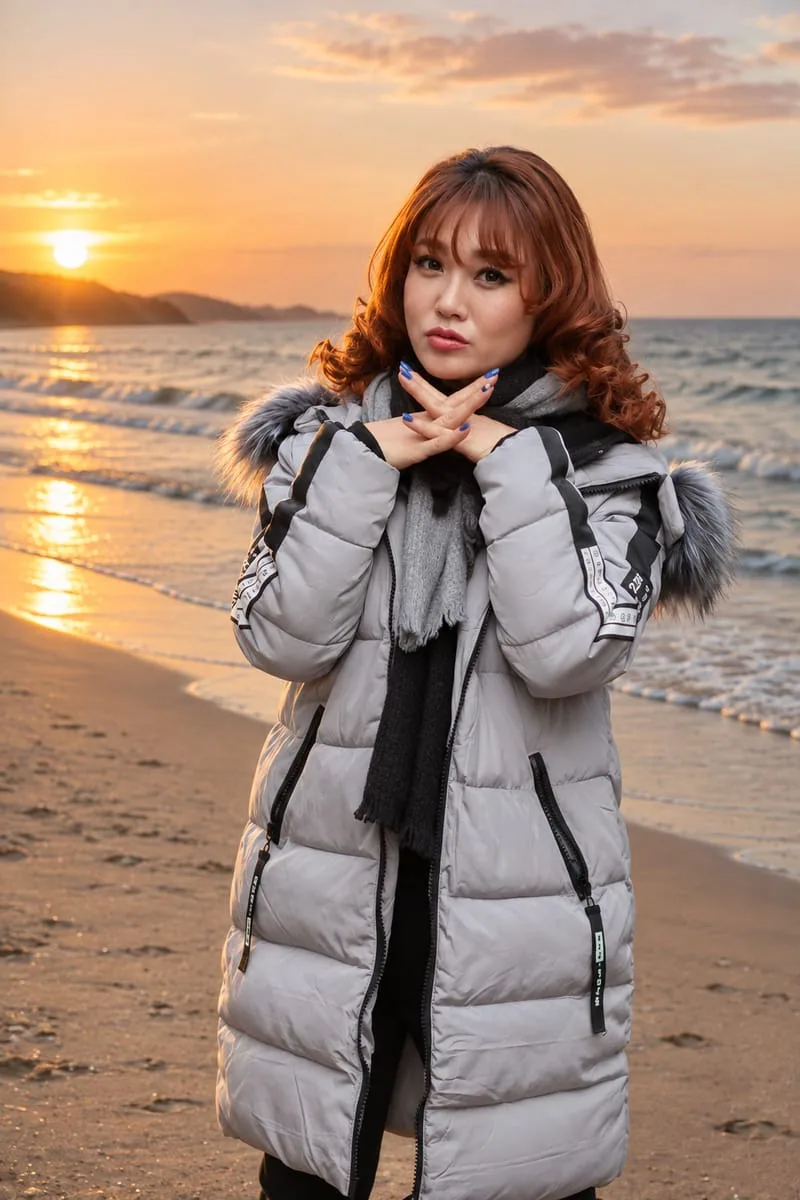 Photo background changerPut your subject somewhere new: describe a place, pick a scene or choose a solid color.
 AI background generatorDescribe a place, or pick one of 12 scenes, and AI builds it behind your subject.
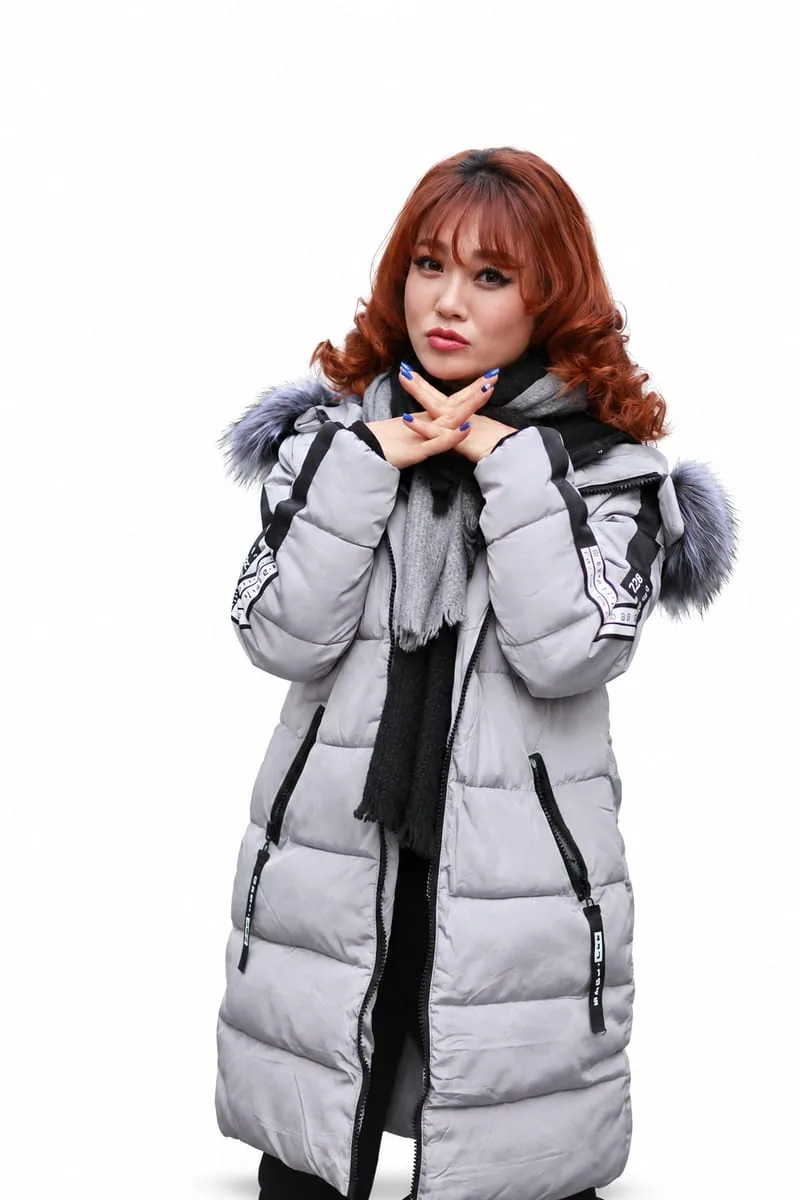 Make background whitePut a portrait or a product on pure white for a profile, a CV or a listing.
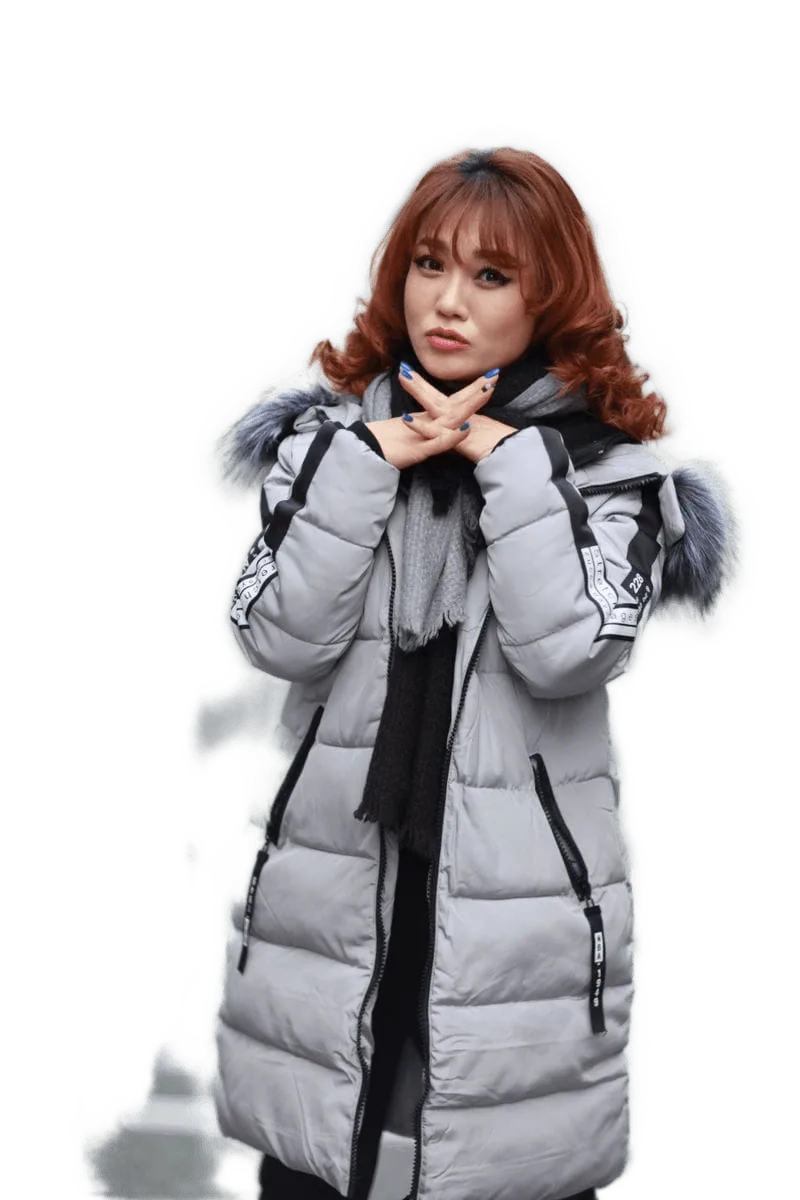 Transparent background makerCut a person out of a photo to a transparent PNG, free and in your browser.
 Remove person from photoTake strangers, tourists or a photobomber out from behind the subject.