
Keep the shot, lose the crowd
Remove a Person from a Photo with AI
Tourists in your holiday shot, a stranger walking past, a photobomber at the edge: write who to take out and AI fills the space with the scene behind them. First AI edit free, then $0.50.
Edit the background you have
First AI edit free · then $0.50 an edit · no subscription
Upload a photo to start, then tap "Remove the people in the background".
Example: People removed
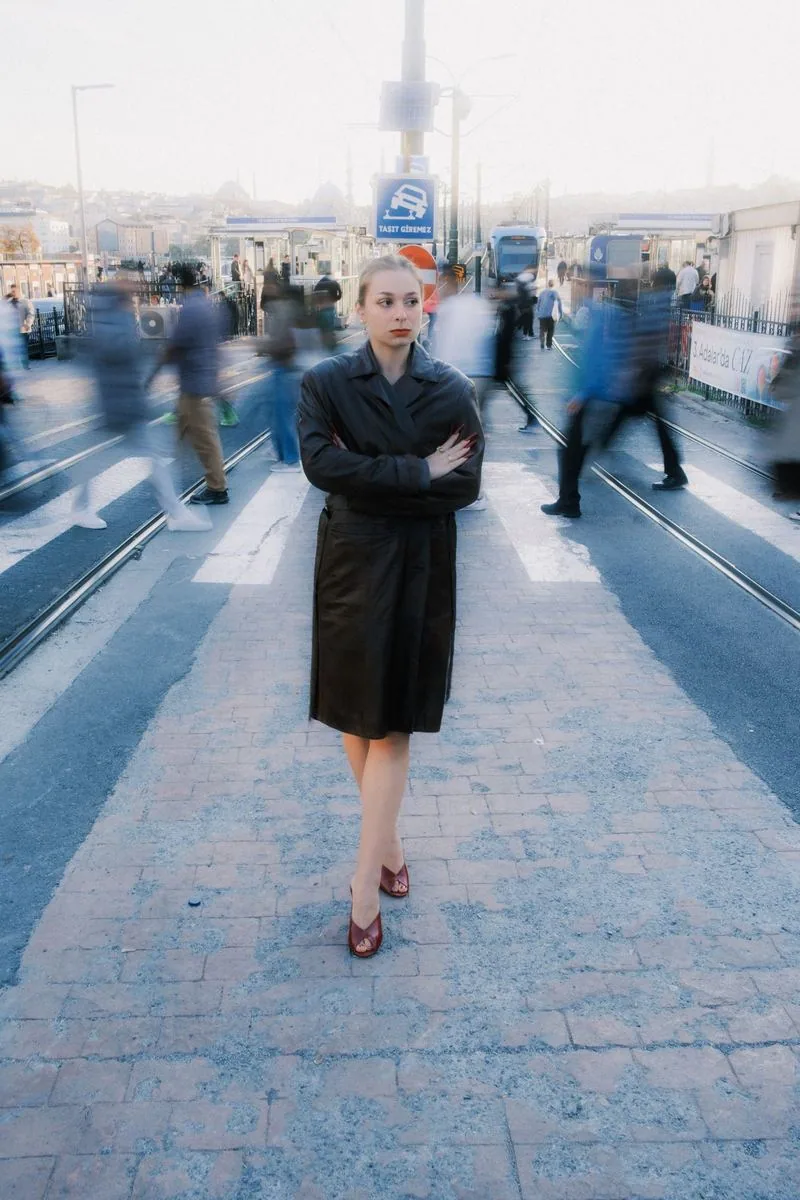
Real result · drag to compare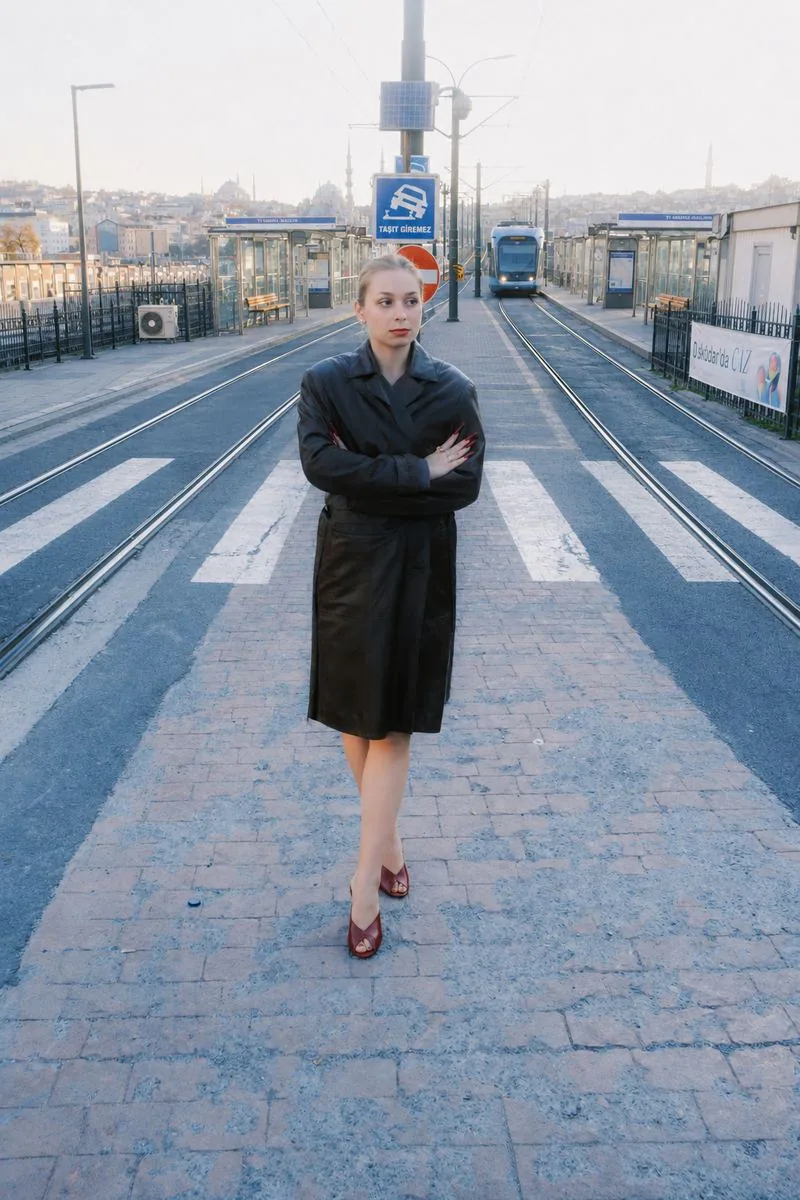
The same Edit mode
Remove a person from a photo: how an edit keeps the subject
A real removal, not a mock-up. Two people walk behind the woman in the before photo; in the after, they are gone and the platform behind them is rebuilt. Drag across the picture to compare: she stayed exactly as she was.
- BeforeAfter
Two passers-by, gone in one sentence
Typed "Remove the people walking behind her and fill in the street" in Edit mode. The model took the two people out and rebuilt the platform and tracks behind them, keeping the woman's face, pose and coat as they are.
The photo is "Woman Standing Still as Crowd Blurs Around Her" by Mert Coskun on Pexels (pexels.com/@mertcoskunraw). The result is a single, unretouched AI edit, scaled to the photo's size for the slider. As the edit rebuilds the background, small background text, such as the banner on the right, can be rewritten: check the result before you use it.
Usually under a minute
How to remove a person from a photo in four steps
- 01
Upload the photo
A JPG, PNG or WebP up to 10 MB: a travel photo, a portrait, a group shot or a product on a busy table.
- 02
Say who to remove
Tap the idea "Remove the people in the background", or write your own sentence, such as "remove the man in the red jacket on the left". Edit mode takes up to 300 characters.
- 03
Press Try free
Sign in when you press it, and your photo and sentence wait for you. Your first AI edit is free; after that an edit is 125 credits, which is $0.50.
- 04
Compare and download
Drag across the result to compare it with your photo, then download it at your photo's size. Every AI edit stays in My edits, so you can come back to it.
People and the things around them
What you can remove from a photo background
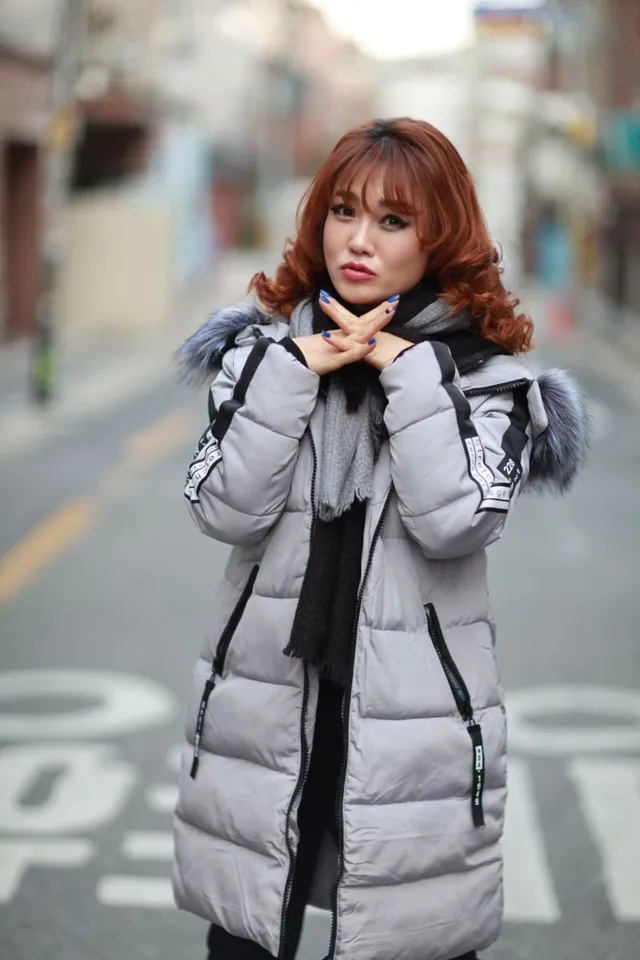
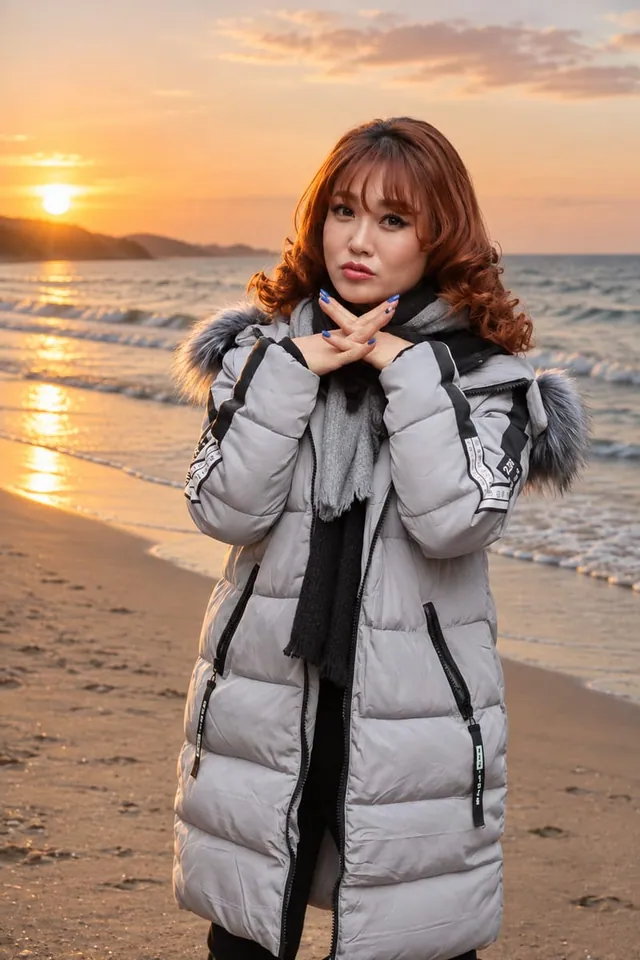
Edit mode works on the background your photo already has. You say what to take out in your own words, and the person, pet or product in front stays as it is.
- 01
Remove a person from the photo background
One stranger walking behind you, a waiter in the corner of a restaurant shot or someone half in the frame at the edge.
- 02
Remove tourists and crowds
The people around a landmark, a beach or a market, so the place looks the way you remember it, not the way it was at noon.
- 03
Remove photobombers
The friend pulling a face behind you, or a stranger who stepped into a group photo, while everyone you meant to photograph stays.
- 04
Remove unwanted objects from the photo
A stray bag, a trash bin, a sign, a parked bike or cables behind the subject: name the thing and where it is, and it goes.
A good photo with people in the way
When to remove a person from a photo
Often the photo is right, the light, the place and your face, and only the people behind you are wrong. Removing them keeps where it was taken, so it still feels like your photo.
- 01
Travel and holiday photos
Keep the landmark, the old street or the view, and take out the tourists who walked through the shot.
- 02
Profile and dating photos
A photo of you at a party or a café, without the strangers behind you, for a dating profile, a team page or a social account.
- 03
Family and event photos
Clean up the photo background of a wedding, a birthday or a graduation before you print it or share it with the family.
- 04
Product and listing photos
Take a passer-by or clutter out from behind a product shot taken in a shop, a market stall or a street.
Get it right the first time
Tips for removing a person from a photo so it looks real
- 01
Say which people, and where
"Remove the two people on the right behind her" tells the model exactly who to take out. With several people in the photo, this keeps the ones you want.
- 02
Expect the space to be rebuilt
The model cannot see what was hidden behind someone, so it paints what most likely was there from the scene around them. On a plain wall or a sky that is easy; on a busy street or a crowd, results vary, so check the result closely.
- 03
One change at a time
Remove the people first, then make a second edit to blur or brighten what is left. Short sentences work better than a long list.
- 04
Too crowded? Blur or replace it
When the whole background is people, blurring it or putting your subject somewhere new often looks better. See the other ways to edit a photo background.
One-time, no subscription
Remove a person from a photo: first edit free, then $0.50
Every account gets one free AI edit. After that, each AI edit is 125 credits, which is $0.50, and a one-time $5 purchase adds 1,250 credits: ten edits.
- First AI edit free for every account, no card needed
- 125 credits ($0.50) for each AI edit after that
- $5 one-time for 1,250 credits: ten edits, no subscription
- Credits come back when an edit fails
- Transparent PNGs of people: free, in your browser, no sign-in
Removing a person from a photo: questions and answers
How do I remove a person from a photo?
Upload the photo, choose Edit and tap "Remove the people in the background", or write who to take out, such as "remove the man walking behind her". Press Try free and AI removes them and fills the space with the scene around them. There is no brush or masking by hand.
Is it free to remove a person from a photo?
Your first AI edit is free: sign in when you press Try free, no card needed. After that each AI edit costs 125 credits ($0.50), bought as a one-time $5 pack of ten edits, with no subscription.
Can I remove one person from a photo and keep the others?
Yes, if you say which one. Describe the person and where they are, such as "remove the woman in the blue coat on the left", so the model takes out that person and leaves the rest of the people in the background.
Will it remove people I want to keep in the photo?
Every edit asks the model to keep the main subject exactly as it is (face, pose, hair, clothes, size and place in the frame) and to change only the background. AI image models can still change a small detail, so compare with the slider and run the edit again if something is off.
What fills the space where the people were?
The model rebuilds what was most likely behind them from the scene around them: the wall, the street, the sand or the sky. It is a reconstruction, not the real view, and on busy scenes like a crowded street it can look less convincing, so check the result before you use it.
Can I remove unwanted objects from a photo too?
Yes. Edit mode takes any change to the background in your own words, so you can remove a bag, a sign, a trash bin or cables behind the subject the same way you remove a person.
What if the result is not right?
Run the edit again, or say more precisely who to remove and where. If an edit fails, its credits come back to your balance, and a failed free edit can be tried again.
What photos can I use?
Any JPG, PNG or WebP up to 10 MB. The result keeps your photo's size. Upload only photos you have the right to use.
Which AI removes the people?
gpt-image-2, the image model from OpenAI, through our AI gateway. An edit usually takes under a minute, and the result is saved in My edits.
Are my photos private?
Photos you upload and their results are stored at long, unguessable addresses and are not listed anywhere, and we do not use them to train AI models. Write to contact@photo-background-changer.com and we delete them within 30 days.
Same studio, other jobs
More ways to fix a photo background
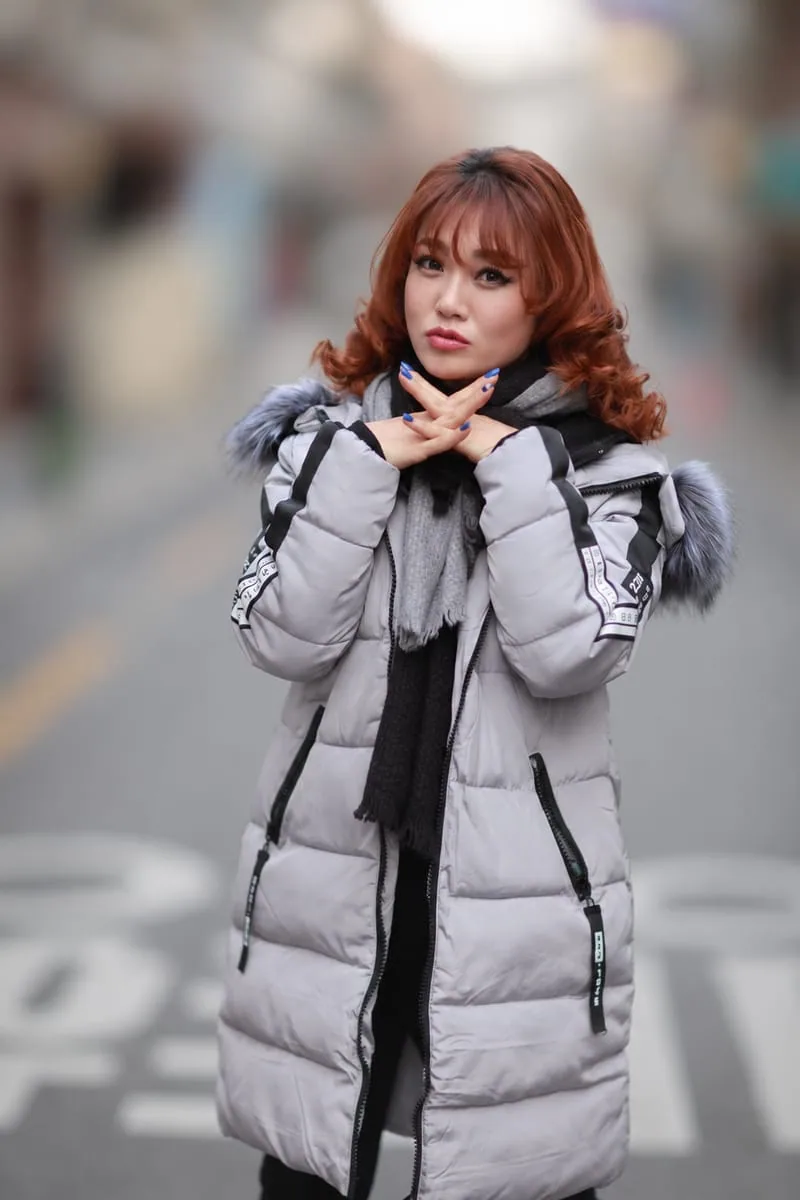 Edit photo backgroundBlur it like a portrait lens, brighten it or turn the sky clear blue, and keep the place.
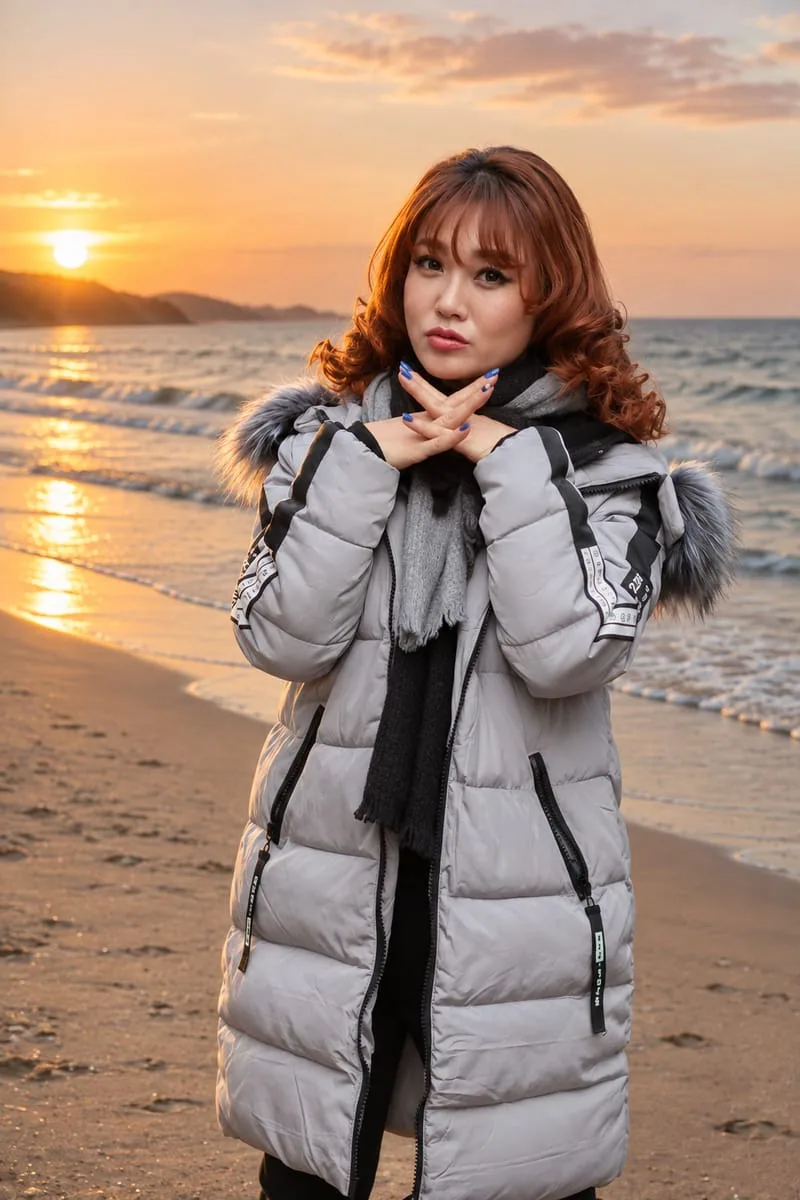 Photo background changerPut your subject somewhere new: describe a place, pick a scene or choose a solid color.
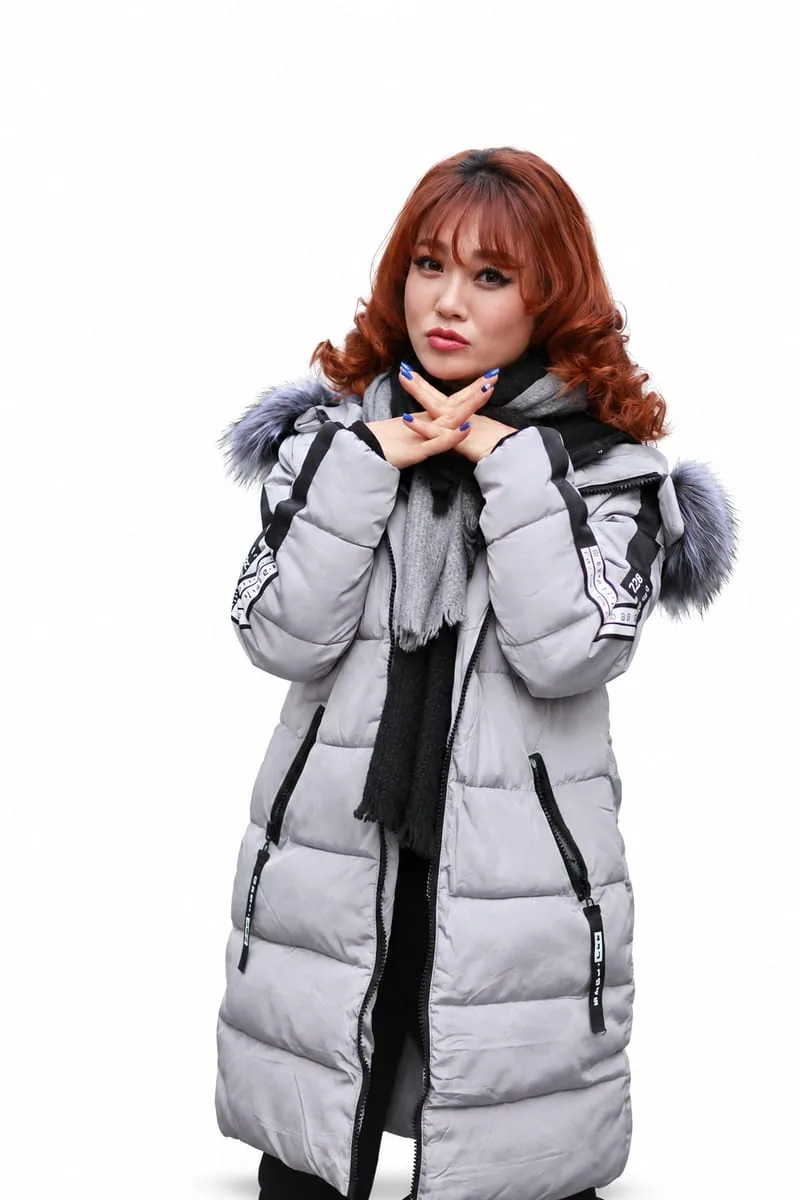 Make background whitePut a portrait or a product on pure white for a profile, a CV or a listing.
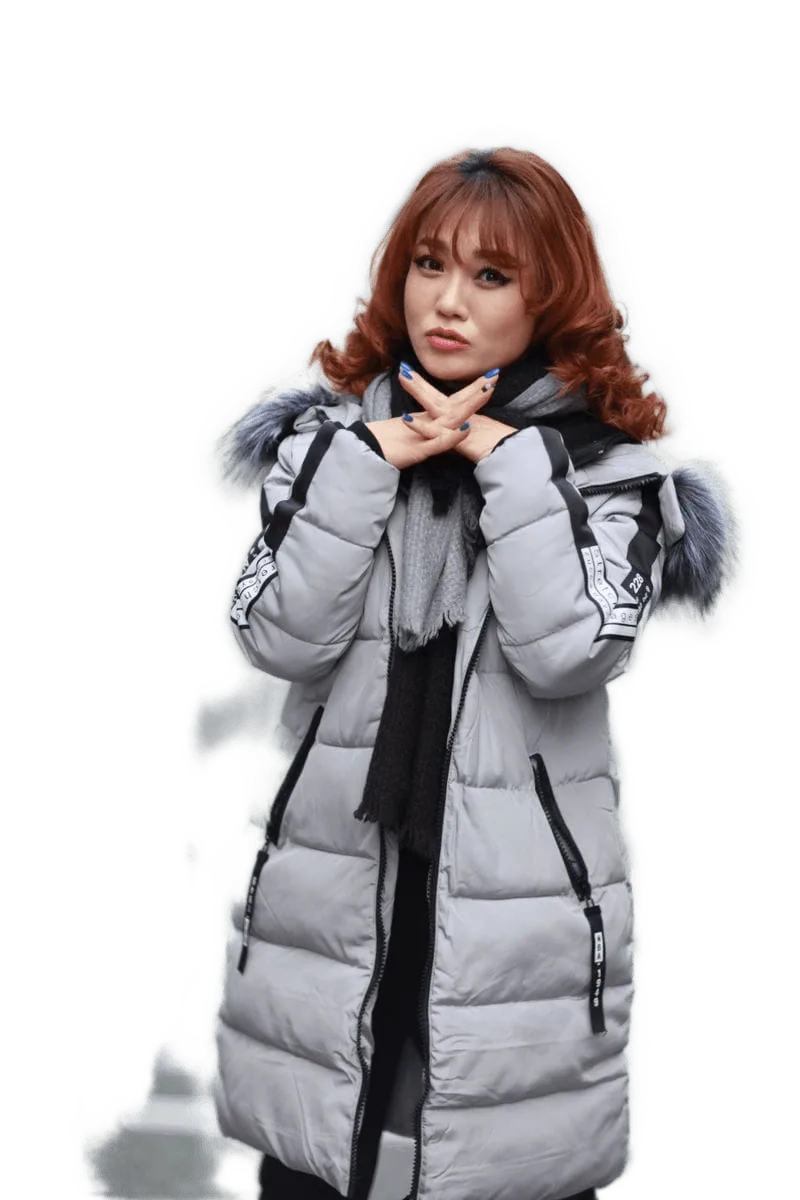 Transparent background makerCut a person out of a photo to a transparent PNG, free and in your browser.